
Zapier simplifies scheduling by automating repetitive tasks across 7,000+ apps, saving businesses time and improving efficiency. With tools like Schedule by Zapier, Delay by Zapier, and Paths, you can automate workflows, manage conditional tasks, and ensure actions happen at the right time. For instance:
Key benefits include syncing calendars, sending reminders, and managing complex schedules without manual effort. Whether you're running a small business or managing multiple clients, these tools streamline operations and reduce errors. By integrating Zapier with tools like Google Calendar or My AI Front Desk, you can automate appointment scheduling, follow-ups, and more.
For advanced setups, explore AI receptionist tutorials for custom intervals, sequential task execution, and filters for precise control. Regularly review workflows to ensure they align with your goals and optimize task usage to avoid exceeding limits. Zapier's automation tools transform scheduling into a hands-free process, helping you focus on growth and customer satisfaction.

Zapier Scheduling Features Comparison: Functions and Use Cases
Zapier's scheduling tools are built around three main features that simplify time-based tasks. These tools automate repetitive scheduling processes, allowing you to focus on more important activities. Here's a closer look at how each feature works and how they can enhance your workflows.
Schedule by Zapier is a powerful trigger that kicks off workflows based on a set schedule - whether daily, weekly, or monthly. Unlike event-based triggers (like receiving an email), this one runs purely on time.
You can customize it to execute on specific days or at exact times. For example, set a workflow to run every Monday at 9:00 AM to generate a weekly sales report or every evening at 6:00 PM to send out reminders. This is ideal for routine tasks like data backups, team updates, or billing reminders that need to happen consistently.
Imagine saving 30 minutes every morning by automating a task like pulling data from multiple sources. With this trigger, that chore becomes a hands-free process.
Delay by Zapier allows you to pause actions in a workflow for a set amount of time - minutes, hours, or even days - or until a specific date and time. This gives you fine-tuned control over when actions take place.
For instance, you can delay sending a follow-up text until two hours after a call or postpone it until 9:00 AM the next business day. This ensures your communications don’t feel rushed or overwhelming.
Formatter by Zapier is another handy tool that makes sure your data is compatible across different apps. It can handle tasks like converting time zones, reformatting dates, performing calculations, or cleaning up text. For example, if your phone system logs times in UTC but your CRM requires Eastern Time, Formatter will handle the conversion seamlessly. Pairing Formatter with scheduled triggers ensures your data is clean and consistent before it reaches other tools, reducing errors and keeping your records organized.
Paths bring conditional logic into workflows, enabling a single Zap to branch into multiple outcomes based on specific criteria. This eliminates the need for separate Zaps and allows for more complex scheduling scenarios.
In practice, paths can route actions differently depending on the situation. For example, if an AI receptionist books an appointment, one path could add the details to Google Calendar and send a confirmation email. If the call is an inquiry, another path might create a task in your project management tool for follow-up. You can even design paths to handle actions differently on weekdays versus weekends or prioritize workflows for VIP clients.
Combining paths with filters ensures your workflows are both flexible and accurate. Start by pinpointing your biggest scheduling challenges, then build a single Zap with paths to manage common variations automatically.
Below is a quick summary of these key scheduling features and their ideal use cases:
| Feature | Function | Best Use Case |
|---|---|---|
| Schedule by Zapier | Initiates workflows at set times | Daily reports, weekly reminders, monthly billing |
| Delay by Zapier | Pauses workflows for a set time | Spacing follow-ups, waiting for business hours |
| Formatter by Zapier | Adjusts and standardizes data | Time zone conversions, date formatting, calculations |
| Paths | Adds conditional logic | Routing VIPs, handling weekday vs. weekend tasks |
These tools work together to streamline your scheduling workflows, making even the most complex processes manageable.
You can start automating your scheduling workflows in just minutes with Zapier.
To begin, choose Schedule by Zapier as your trigger. Decide on a frequency - hourly, daily, weekly, or monthly - and set the required time parameters for your schedule. Make sure to align your schedule with your account's timezone. If you ever change timezones, toggle the Zap off and back on to update the settings properly.
During testing, you might encounter a throttling error. If that happens, simply retry after a short wait. Keep in mind that Zapier doesn’t guarantee tasks will run at the exact minute you’ve scheduled. Typically, workflows execute within a few minutes of the set time.
Once your trigger is set, you can start adding actions to complete your automated workflow.
Click the "+" button to add an action step. Choose the app you want to connect - like Gmail, Slack, or Google Sheets - and select the specific event you’d like to automate. For instance, you could send an email, add a row to a spreadsheet, or post a message in a team channel.
Use the Insert Data menu to map fields correctly, ensuring your data flows accurately between apps. If you're updating a spreadsheet, select "Custom" for the Row field and map the "Row ID" from the trigger step. This ensures the Zap updates the correct entry.
Once your actions are configured, review the setup to confirm everything is working as intended before activating your Zap.
Run tests for both your trigger and action steps. For example, you might create a test entry, like adding a new row to Google Sheets, to confirm everything processes smoothly. If any mapped fields are blank, check the "Data In" section to troubleshoot. Once all tests pass, turn your Zap on.
Tools like Schedule by Zapier, Looping by Zapier, and Delay by Zapier are particularly useful because they don’t count toward your plan’s task limits. This makes them a budget-friendly choice for managing high-volume workflows. Keep in mind, Zapier stores up to one month of data or the last 10,000 runs. If you need records for longer, download your Zap history as a CSV file regularly.
To keep track of your task usage, visit the "Billing and Usage" section. If you hit your monthly task limit, Zapier will pause new runs until your quota resets. For troubleshooting, the "Zap Runs" tab in the Zap History provides detailed data on what went in and out of each step.
Once you've got the basics of scheduling down, you can take things up a notch with features like custom intervals, execution controls, and conditional logic.
Custom frequency settings let you schedule tasks beyond the usual daily or weekly patterns. For example, setting the Frequency Type to "Month" and the Interval to "3" creates quarterly triggers - perfect for tasks like quarterly reports or seasonal campaigns. You can also set up biweekly schedules (every two weeks), which work well for payroll or mid-month updates.
Want to fine-tune triggers for specific periods? Combine the "Every Month" trigger with a Filter by Zapier step using OR logic to target months like March, June, September, and December. If you need workflows to run on the first business day of the month, set a daily trigger while excluding weekends. Then, add a Formatter by Zapier step to extract the day of the month and use a filter to ensure the workflow only continues if the day is less than 4. This way, your automation runs on the first weekday.
Keep your Zap's timezone settings accurate. For events that don't follow regular intervals - like holidays or irregular meetings - skip the native Schedule tool and use Google Calendar's "Event Start" trigger instead.
Once you've set up custom intervals, you can fine-tune task execution to improve efficiency.
By default, Zapier runs tasks in parallel. However, as of June 2025, you can switch to sequential execution for Paths. This ensures branches run in order, one after another. To enable this, go to your Zap's advanced settings and select Sequential execution under Path execution settings.
"Sequential execution unlocks big benefits for you: The ability to run branches in the order you want; Fewer rate limiting errors since only one branch will run at a time; Easier troubleshooting because Paths will run in a clear, predictable order." - Zapier
You can also use Delay After Queue to process tasks sequentially, minimizing API rate limits or data conflicts. This is especially handy when multiple triggers fire simultaneously, ensuring each task finishes before the next one begins. Keep in mind that, as of January 13, 2025, the shortest delay Zapier allows is one minute.
To refine your workflows further, use filters and paths to ensure each step runs only when needed.
Filters act as checkpoints, stopping a Zap unless certain criteria are met. For instance, you could process only orders over $100 or skip test data. Paths, on the other hand, allow branching logic within a single Zap, replacing the need for multiple workflows. This is useful for routing leads by location, managing customer sentiment, or deciding whether to update a record or create a new one. A great example: Remote.com's three-person IT team used paths to automate over 11 million tasks in 2024, cutting company requests by 28%.
| Feature | Primary Function | Best Use Case |
|---|---|---|
| Filters | Gatekeeper (Stop/Go) | Preventing duplicates; ignoring test data; threshold-based triggers |
| Paths | Branching (If/Then) | Routing leads by location; handling sentiment scores; update vs. create logic |
| Delay | Timing Control | Waiting for specific times; spacing out steps to avoid API rate limits |
Make sure to name your filters and paths clearly - like "Filter: Only orders over $100" - to simplify troubleshooting. Also, test each branch with real data that matches its conditions to confirm everything works as expected. These strategies add precision to your workflows while keeping your scheduling process efficient.
My AI Front Desk simplifies real-time scheduling and lead follow-ups by integrating seamlessly with Zapier. Listed as "AI Receptionist" on Zapier, it provides instant triggers that activate as soon as a call ends. These triggers enable workflows that respond immediately to customer interactions, connecting data to over 9,000 apps.
With Active Times Control, you can set specific business hours directly in My AI Front Desk's dashboard. This ensures your AI receptionist only handles calls during your designated working hours. To extend this functionality into Zapier workflows, use a daily schedule trigger paired with Filter by Zapier. Add a Formatter by Zapier step to extract the current day and time, then filter workflows to proceed only during your set hours. This prevents after-hours actions, like sending appointment confirmations at odd times like 2:00 AM. Since both Formatter and Filter steps count as 0 tasks toward your monthly Zapier limit, you can add precision without extra costs.
Now, let’s see how you can automate appointment scheduling right after a call.
When a caller requests an appointment, My AI Front Desk collects key details such as their name, email, and preferred time. Using the "New Message" or "Delivery" trigger in Zapier's AI Receptionist integration, you can instantly kick off a workflow after the call wraps up. Choose Google Calendar as the action app and select "Create Detailed Event" to map the caller's information into calendar fields like "Start Date & Time" and "Attendees".
If you need to process call transcripts to extract details like phone numbers or appointment preferences, include an AI by Zapier/OpenAI step. This step helps structure the data before adding it to your calendar. Always test workflows with real call data to ensure they work smoothly before going live.
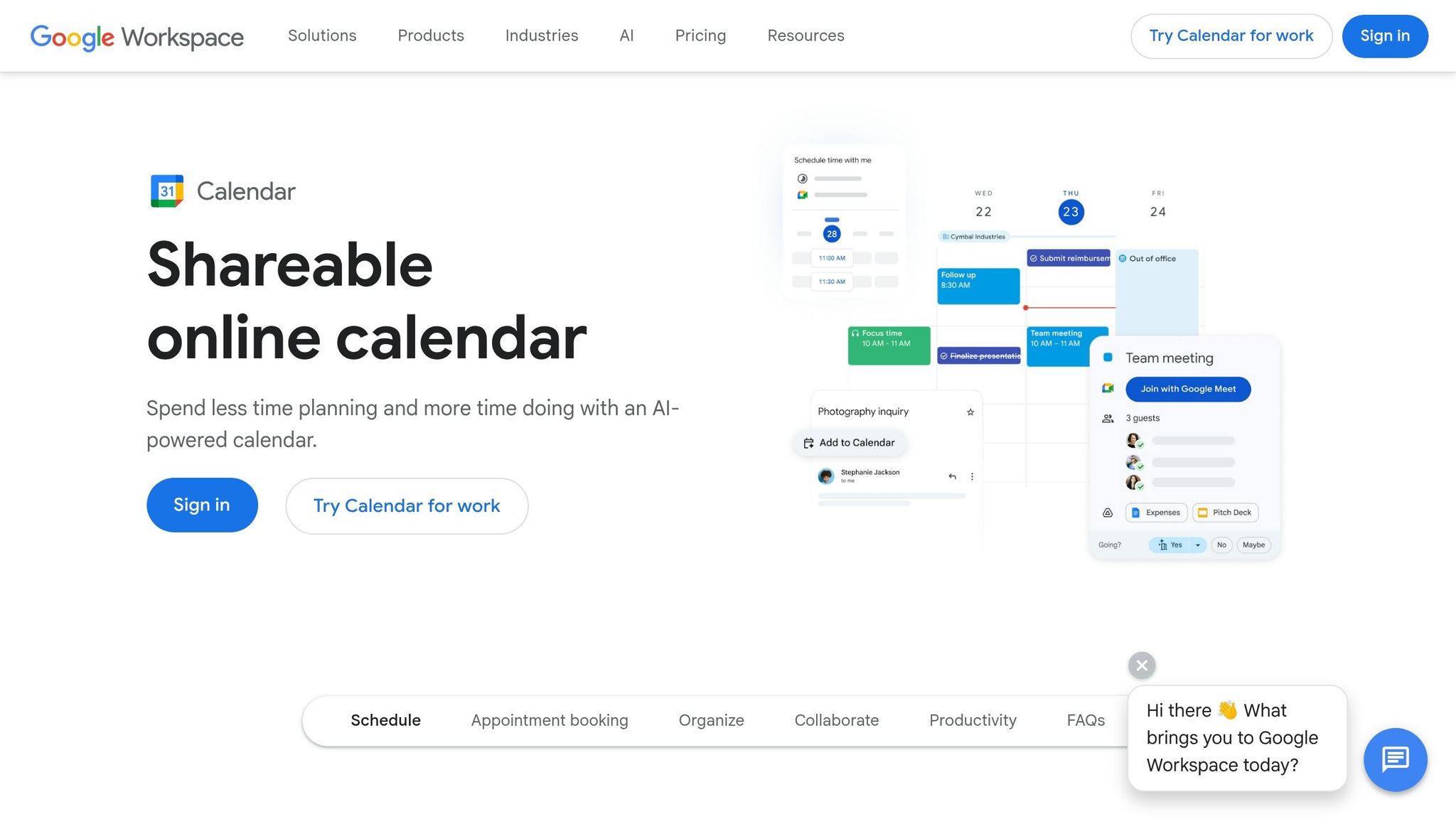
The Google Calendar Integration in My AI Front Desk works in both directions. The AI can schedule appointments during calls, and those calendar events can trigger additional workflows. For example, if you need to manage irregular scheduling like consultations, use the Google Calendar "Event Start" trigger. This trigger ensures Zaps activate precisely when the appointment begins, which is perfect for sending reminders, updating your CRM, or notifying team members.
For late-night calls, you can use the "Delay until" action to pause follow-ups until your active business hours. This ensures that notifications or actions happen at a more suitable time, keeping everything aligned with your schedule.
If you're looking to fine-tune your scheduling workflows, here are some practical tips to keep things running smoothly:
One way to simplify your workflow management is by organizing your Zaps into folders. You can group them by connected apps or business functions - like sales, marketing, or customer support - or even keep all your My AI Front Desk workflows in one place to maximize sales leads. This method makes updates and troubleshooting much easier, especially as your automation library grows.
Keeping an eye on task usage is vital to avoid unexpected costs. A handy solution is using a Google Sheet to log completed actions for usage analysis. It's also worth noting that tools like Schedule by Zapier, Looping by Zapier, and Delay by Zapier don’t count toward your task limits. To further save on tasks, consider adding a Filter step right after schedule triggers. For instance, you can set it to run only on business days, cutting down on unnecessary actions.
Here’s an example of how efficiency pays off: In 2026, CloudTalk used an AI Voice Agent to handle leads that were previously ignored by their sales team. By automating lead generation and qualification, they generated €12.8K in qualified pipeline while spending less than €1,000 - achieving a 17x ROI. This shows how monitoring task efficiency can directly impact your results.
Staying on top of your workflows is essential for keeping them aligned with your business goals. Set a schedule to review them monthly or quarterly to ensure they meet your evolving needs. For instance, if you update your Zapier account timezone, remember to toggle each affected Zap off and back on to apply the change. Testing workflows manually using the "Run" button in the Zap editor is another great way to catch potential issues before they affect live operations.
Data integrity is another critical aspect. Proper mapping and formatting in your Zaps can save you from wasting tasks on clean-up runs or error-handling steps that could have been avoided with a better setup from the start. Regular reviews and updates ensure your workflows remain efficient and effective over time.
Zapier scheduling workflows offer a smart way for small businesses to automate repetitive tasks while keeping their monthly task quota intact. Tools like Schedule by Zapier, Delay by Zapier, and Looping by Zapier count as 0 tasks, meaning you can set up frequent workflows - whether it's hourly reminders, daily reports, or quarterly updates - without worrying about extra costs.
By combining scheduling with filters and delays, you can fine-tune workflows to run only on business days or trigger actions at just the right time. And with access to over 9,000 apps through Zapier, the automation opportunities are vast.
For businesses using My AI Front Desk, Zapier integration takes automation even further. It connects tools like Google Calendar and Active Times Control with real-time call data, automating tasks like post-call follow-ups and AI-powered appointment scheduling. This means leads are captured and followed up on 24/7, all without manual effort.
To keep your workflows effective over time, treat them as dynamic systems. Regularly reviewing and updating your automation ensures they stay aligned with your business needs. As your operations grow, organizing workflows into folders will help you manage your expanding automation library. By continuously refining your processes, you’ll maintain efficiency and stay ahead as your business evolves.
When setting up a Zap, you can customize the time zone for each one individually, bypassing your default account settings. While configuring a schedule trigger, you’ll need to specify the start date, time, and the appropriate time zone to ensure that actions take place at the correct local time. To make adjustments easier, you can use the "Adjust" step in the Date/Time formatter. This tool lets you set or convert time zones directly, streamlining the process without needing additional steps.
To make sure a Zap only runs during business hours, you can use Zapier’s scheduling and delay features. Start by setting up a schedule trigger to activate the Zap on specific days and times. Then, include a filter step to verify if the current time falls within your designated business hours.
If the time matches your criteria, the Zap continues as planned. If not, it halts immediately. This setup ensures your Zap operates strictly during the hours you define.
To make the most of your plan and avoid exceeding task limits, keep an eye on your usage in the billing settings. Remember, only successful actions count toward your monthly allowance. If you’re working with complex workflows, try breaking them into multiple Zaps. You can also set up notifications to alert you when you’re nearing your limits or consider enabling pay-per-task billing for more flexibility. By managing your workflows carefully and upgrading your plan when needed, you can stay on track without interruptions.
Start your free trial for My AI Front Desk today, it takes minutes to setup!


