
Figuring out how to download voicemails is one of those skills you don't realize you need until you really need it. It’s essential for holding onto everything from important business agreements to priceless family memories. Whether you're using an iPhone, an Android, or a sophisticated business phone system, the process is usually pretty simple once you know the steps.
Most modern phones and services give you a direct way to save or share these audio files. You just have to know where to look.
In a world of disappearing texts and fleeting emails, a voicemail feels more substantial. It’s a real piece of communication that captures not just what was said, but the way it was said—the tone, the emotion, the hesitation. These are the details that get completely lost in a text message.
Just listening to a voicemail and hitting delete is a habit that can easily lead to lost information or missed opportunities. I’ve seen it happen.
Archiving your voicemails gives you both professional security and personal peace of mind. If you run a small business, a saved voicemail can be your proof of a client's request or confirmation of a critical project update. On a personal level, it might be a message from a loved one you’ll want to listen to again and again.
We're all drowning in calls, which makes managing voicemails more important than ever. Think about this: a staggering 80% of the 13.5 billion global calls made every single day go straight to voicemail. That sheer volume is exactly why learning to download your voicemails efficiently is no longer just a nice-to-have skill; it's a modern necessity. It prevents critical information from getting buried and eventually deleted from a crowded inbox. You can learn more about these fascinating call trends and their impact.
A simple decision tree can help you visualize how to handle each message as it comes in.
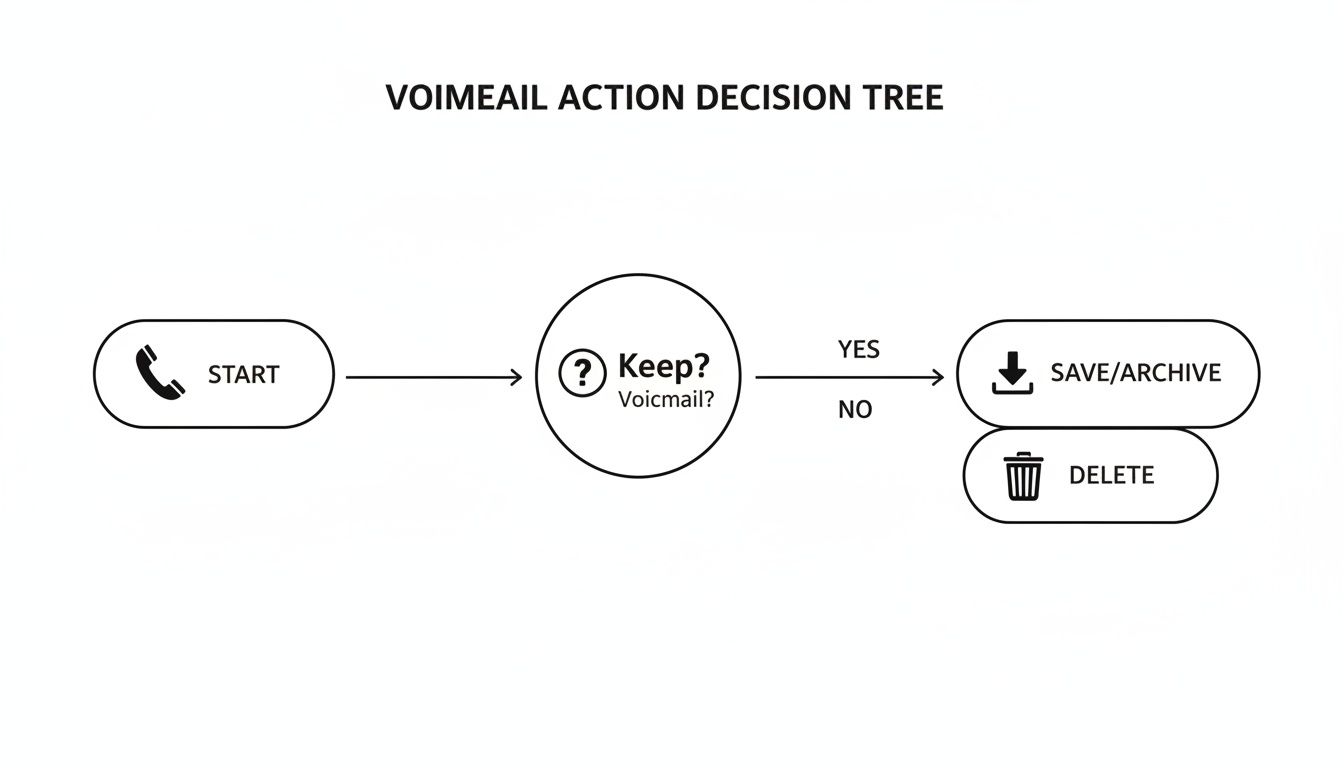
Ultimately, every message boils down to a simple choice: is it valuable enough to save, or can you delete it to make space?
There are plenty of solid reasons to make downloading important voicemails a regular habit. It's really about building a safety net for your personal and professional life.
By creating a system for saving voicemails, you transform your inbox from a temporary holding area into a searchable, secure archive of important conversations. This simple habit protects you from accidental deletions and carrier limitations.
If you're an iPhone user, you're in luck—downloading voicemails is refreshingly simple. Apple's integrated Visual Voicemail feature does away with the old-school hassle of dialing into an inbox. Instead, you get a clean list of all your messages right inside the Phone app. Just tap to play, manage, or save.
The real game-changer here is the built-in Share function. With just a couple of taps, you can export any voicemail and save it permanently, completely separate from your carrier's system. This is a critical move for preserving important messages, especially since most carriers have a habit of automatically deleting older voicemails.
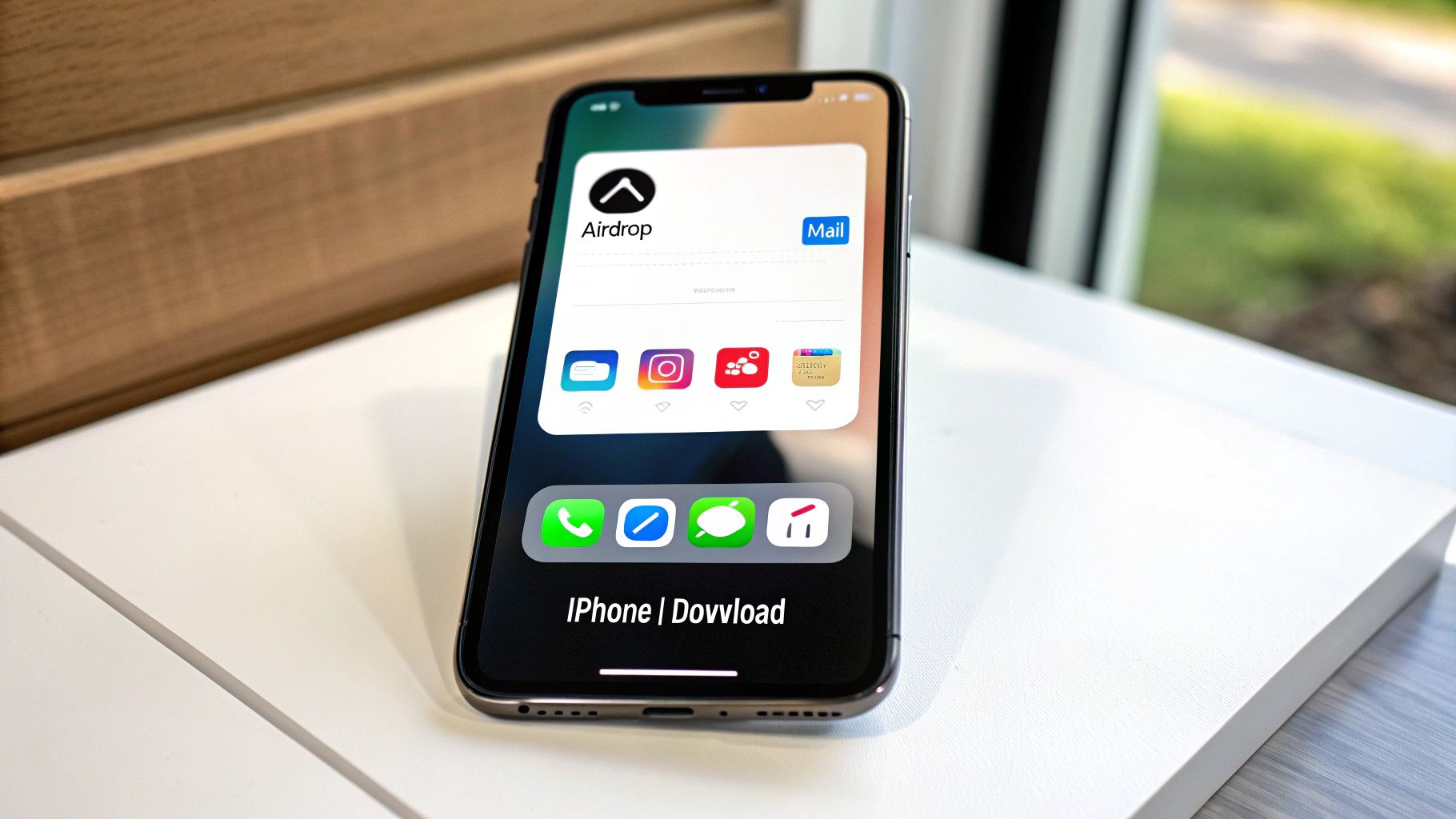
To get started, just open the Phone app and head over to the Voicemail tab, which you'll find in the bottom-right corner. All your messages will be laid out right there in a list.
Scroll through and find the specific message you want to keep, then give it a tap. You’ll see the usual playback controls, but what you’re looking for is the Share icon—it’s the little square with an arrow pointing up. Tapping this icon opens up a world of possibilities for where you can send the audio file.
Your iPhone saves these voicemails as standard audio files (typically .m4a), which play nicely with just about any device or application. This makes sharing and archiving incredibly easy without needing any special software to convert them.
Once you hit that Share button, you’re presented with several great options for saving your voicemail. The best choice really just depends on what you plan to do with the message.
Here are the most common and useful destinations I've found:
By picking the right destination, you can ensure your important audio is safe, organized, and accessible whenever you need it. This simple process transforms a temporary message into a permanent, valuable record.
Unlike the straightforward approach on iPhones, the Android world gives you a lot more flexibility for downloading voicemails. The best way to do it often boils down to your specific phone and carrier. Most modern Android phones have a Visual Voicemail feature baked right into the Phone app, giving you a simple, clean list of your messages.
If you open your Phone app and see a Voicemail tab, you're in good shape. Tapping a message in that list usually brings up a share or export button. From there, you can save the audio file straight to your device or upload it to a cloud service like Google Drive. But if that option isn't there or just doesn't work, don't sweat it—there are better, more reliable ways to handle this.
For my money, Google Voice is the most robust tool out there for managing and saving voicemails on Android. It's a free service that gives you a separate phone number and a powerful inbox that you can access from your phone or any web browser. This is my go-to method because it completely separates your voicemails from your carrier, which means you never have to worry about them being automatically deleted after a certain time.
Once it's set up, Google Voice becomes your central hub for all messages, and downloading them is a piece of cake on any device.
Here’s a look at the Google Voice web interface, which is perfect for managing a bunch of messages at once on your computer.
From this dashboard, you can play, read the transcription, and download any message with just a couple of clicks.
Saving your voicemails from the web is the ideal way to create a permanent backup on your computer's hard drive. It's super simple.
On your phone, the process is just as easy inside the Google Voice app. Just tap and hold the message you want, hit the share icon, and save it to your phone's storage or send it to another app.
While saving new messages is great, it’s also incredibly useful to know how to recover deleted voice recordings and audio files on Android phones. It's a good skill to have in your back pocket to protect important conversations from being lost forever.
So what happens if you'd rather not use Google Voice and your phone's built-in app isn't playing nice? In that case, your last resort is your mobile carrier’s own Visual Voicemail app. Major providers like Verizon, T-Mobile, and AT&T usually have their own apps available on the Google Play Store.
Honestly, these apps can be a bit clunky sometimes, but they get the job done when other methods fail. Just search the Play Store for your carrier's name plus "visual voicemail" to find the official one.
For any business, a voicemail isn't just a missed call—it’s a potential lead, a client issue, or a critical project update. That's why moving beyond the simple download options on a personal phone is absolutely essential for professional workflows. Business communication platforms and Voice over IP (VoIP) systems offer far more powerful tools for managing, archiving, and acting on these messages.
These systems are built for efficiency. Instead of messages being stuck on a single device, they live in a centralized cloud, accessible to your entire team. This shift is crucial for collaboration and ensures no important message ever falls through the cracks.

One of the most valuable features in modern business phone systems is voicemail-to-email. This simple automation sends an audio file of every new voicemail directly to a designated email address. Imagine a new lead’s message landing in your sales team's shared inbox, ready for immediate follow-up by the first available person.
You don't have to manually check a voicemail box or remember to download files. The message arrives as a standard MP3 or WAV attachment, making it easy to save, forward, or upload to a CRM or project management tool. It’s a set-it-and-forget-it solution that turns your email into a searchable voicemail archive.
The voicemail service market is currently valued at an impressive $2.5 billion and is growing fast, largely because of practical features like these. In fact, 70% of businesses in North America already use voicemail-to-email to sharpen their response times and workflow efficiency. With this kind of integration, learning how to download voicemails becomes a seamless, automated part of daily operations. You can explore more about the growth of these services.
Most VoIP providers, like RingCentral or Nextiva, offer a user-friendly web portal or user hub. Think of it as your command center for all things communication. From here, you can access a complete log of all voicemails, listen to them, and, most importantly, download them.
This portal-based approach is ideal for bulk actions. Let's say you need to save all voicemails related to a specific client from the past quarter. Instead of downloading them one-by-one from a phone, you can log into the portal, use filters to find the exact messages you need, and download them all at once.
This centralized control is what separates professional systems from personal ones. It provides oversight, simplifies archiving for compliance, and ensures business continuity even if an employee's phone is lost or broken.
To give you a better idea of what to expect, here's how some of the top business VoIP providers stack up when it comes to voicemail download features.
As you can see, most leading platforms offer robust web portal access and email delivery, but support for deeper integrations through APIs and webhooks can vary.
For businesses looking to get ahead, the real power lies in automation through APIs and webhooks. These are the tools that allow your phone system to "talk" to other software you use every day, like your CRM, helpdesk, or internal databases.
For instance, My AI Front Desk can use a post-call webhook to send voicemail data directly into your CRM. When a new lead leaves a voicemail, a new contact can be automatically created, with the audio file and its transcription attached to their record.
This transforms a simple voicemail from a passive message into an active, data-rich lead that your team can immediately act on. It's about turning communication directly into revenue.
Once you've figured out how to download your voicemails, a whole new set of questions pops up. What do you do with the file? What even is an M4A file, and is it better than an MP3? Picking the right format and tools from the get-go makes managing those archived messages much simpler down the road.
Your choice of file format really comes down to what you plan to do with the voicemail. It’s usually a trade-off between audio quality and file size. Most native phone apps save voicemails in a compressed format to save space, but that’s not always the best option for every situation.
When you download a voicemail, you'll probably run into one of three main file types. Knowing the basics helps you decide if you need to convert the file or can just leave it as is.
If you want to make sure your voicemails are playable on pretty much anything, it's a good idea to learn how to convert audio files into a universal format like MP3.
For most people, MP3 is the best all-around choice for saving voicemails. Its mix of small size and near-universal compatibility makes it incredibly practical for long-term archiving, sharing, and playback on any device you can think of.
Sometimes, the built-in voicemail app on your phone or from your carrier just doesn't cut it. Maybe it lacks bulk downloading, or you can't automatically back messages up to the cloud. This is where third-party apps like YouMail or iMazing step in, giving you a much more powerful way to manage your messages.
These tools often pack in advanced features like cloud storage integration, voicemail transcription, and the ability to download all your messages with a single click. Cloud-based voicemail services are quickly becoming standard, making it as easy to get a message as it is to check an app notification. This trend is a big part of why the unified communications market is projected to hit $583.8 billion. In fact, freemium models are attracting 60% of new users who want that instant access and simple email forwarding.
Even with a solid plan, you can still hit a few curveballs when trying to save your voicemails. I've found that the same few questions come up again and again, usually tied to weird carrier settings, legal gray areas, or that sinking feeling of a deleted message.
Let's walk through those common roadblocks. Think of this as the troubleshooting guide for those "now what?" moments. We'll cover everything from trying to recover messages you thought were gone forever to figuring out why that download button is playing hide-and-seek on your phone.
This is easily one of the most common—and stressful—questions out there. The short answer is, maybe. Once a message is truly wiped from your carrier's server, it's usually gone for good. But thankfully, many services now have a temporary safety net, kind of like the trash can on your computer.
If you've checked these spots and come up empty, the message is likely unrecoverable. This is exactly why getting into the habit of saving important voicemails before you're in a pinch is such a game-changer.
It’s incredibly frustrating when a guide says "tap the share button" and there’s no share button to be found. Nine times out of ten, this problem comes down to one thing: a feature called Visual Voicemail.
Visual Voicemail is what lets your phone display messages in a neat list instead of making you listen to them in order. Not all carriers enable it automatically, especially on older plans or if you brought your own unlocked phone to their network. If the download option is missing, your first move should be to call your provider and ask them to activate Visual Voicemail for your line.
Before you spend time on hold with customer service, try a couple of quick fixes. First, make sure your phone's operating system is completely up-to-date, as a simple software update can sometimes resolve glitches. If you're on Android, you may also need to download your carrier's specific Visual Voicemail app from the Play Store.
Generally speaking, if someone leaves a message for you on your device, you have the right to save a copy for your own records. The very act of leaving a voicemail usually implies consent for the recipient to hear it and keep it.
Where things get tricky is if you intend to share that voicemail publicly or use it in a legal proceeding. Recording and consent laws vary wildly from one state or country to another. For anything involving business disputes or legal matters, your best bet is always to chat with a legal professional. It's the only way to be certain you're staying on the right side of local privacy laws.
A folder full of files named voicemail(1).m4a is just a digital junk drawer. Taking a minute to create a simple organization system from the get-go will save you a world of pain later.
For personal messages, a cloud service like Google Drive or iCloud Drive is perfect.
For business voicemails, you'll want to be more methodical. Adopt a consistent naming system like YYYY-MM-DD_ClientName_Subject.mp3. This makes every file instantly searchable. Store them in a shared team drive or, even better, attach them directly to client profiles in your CRM system.
Ready to turn your business voicemails from passive messages into actionable leads? My AI Front Desk not only offers advanced voicemail transcription and management but also integrates directly with your CRM. Our AI receptionist can handle calls, schedule appointments, and ensure every opportunity is captured. Visit My AI Front Desk to see how it works.
Start your free trial for My AI Front Desk today, it takes minutes to setup!


